Prepare a sprite replacement
Use a PNG named for the original picture ID, such as 1068.png. Pack loading supports static pictures; animated pictures and mobile pose sheets use other rendering paths. You can organize files in subfolders such as held or ground, or package those folders inside a ZIP.
Keep the canvas proportional to the original. For a 4× version of a 42 × 42 picture, use 168 × 168 pixels. Scale the transparent margins along with the drawing. The client fits the whole canvas into the original picture rectangle, so cropping or adding padding changes the apparent size and position of the contents.
- Keep foreground objects’ transparent backgrounds and contact points aligned with the original.
- Check outlines, highlights, and contrast at normal game size against busy scenery, not only against an empty preview background.
- For opaque floor tiles, keep the original rectangle filled and match opposite edges. Inspect several repeated tiles for seams and conspicuous repetition.
- Check overlaps with nearby scenery and characters. A higher resolution does not change the sprite’s draw order, but a wider visible footprint can cover neighboring objects.
Use one active file per sprite while iterating. The pack location and duplicate rules explain which copy wins when files overlap. Packs are optional runtime files and do not need to be embedded or rebuilt into the client.
Compare original and HD artwork
- Install the PNG or ZIP and enable Settings → Experimental → Use sprite pack files.
- Open Settings → Experimental → View HD Sprite Replacements.
- Choose a ZIP from Sprite pack, or choose Loose files for PNGs stored outside ZIPs. Select HD, original, or side-by-side display; the gallery fits each picture into its card so you can compare shape, proportions, and detail.
- After saving an edit, use Reload HD Sprites in the preview. New and removed packs and IDs update the gallery; Console reports the folders scanned and the discovered count.
- Check the result in a live scene or a movie, toggling Use sprite pack files for a before/after comparison. The small preview does not reproduce surrounding scenery, repeated tiles, or every draw-order interaction.
The original side needs the normal Clan Lord artwork to finish loading. Reload HD Sprites rereads pack files; it does not download originals. Both the Debug window and the preview provide the same pack reload action.
Compare animated effects
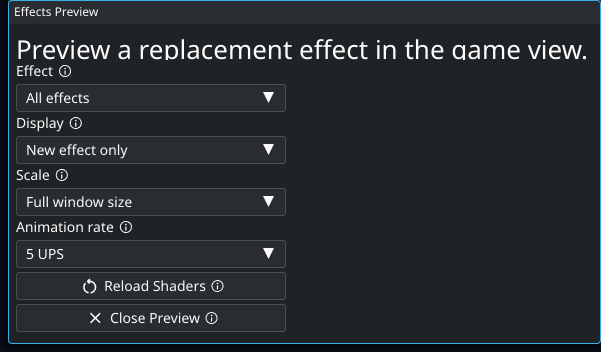
Open Settings → Tools → Debug Settings → Open Effects Preview. The gallery uses the game view with a grassy background. It can be used while ordinary Replacement Effects are off; its display options apply only to the preview.
- 1
Use this to match the original sprite’s animation cadence when comparing it with a shader. UPS means original-animation updates per second, not displayed frames per second. The shader remains smooth between updates, and this preview setting does not change live gameplay.
| Control | Use it to |
|---|---|
| Effect | Show All effects as a gallery, or select one for close inspection. |
| Display | Choose New effect only, Original animation, or Original + new effect. |
| Scale | Inspect one effect At real size, at 200% size, or fitted to the Full window size. The gallery always fits its own tiles. |
| Animation rate | Set the original animation’s cadence from 1 to 30 updates per second (UPS). The shader continues smoothly between those updates; this does not set the client’s FPS or the server’s update rate. |
| Close Preview | Return the game view to its normal scene. |
The original comparison needs the game’s image archive. For final review, inspect repeated and overlapping effects in a recording as well: the gallery is useful for shape and timing, while a scene shows whether the effect remains readable in context.
Reload a replacement shader
Replacement shaders live in source/data/shaders in a source checkout. Follow the repository’s development setup, then run from source:
CGO_ENABLED=0 go run . -effectsPreview- Select the effect you are editing and compare its original animation.
- Edit its existing
.kagefile insource/data/shaders, then save. - Press Reload Shaders and check Console for success or the compiler error. Correct an error and reload again before judging the new version.
- Compare actual size, a larger view, and the original/new overlay. Use a movie to check timing, placement, and several instances together.
Replacement-shader reload reads the checkout associated with the running build and otherwise uses its bundled shader source. It does not read replacement shaders from the user-data folder or from sprite-pack ZIPs. Run from the checkout you are editing; an unrelated packaged binary may continue to use its bundled effects.
Editing a shader for an existing effect can be reloaded. Adding a new shader or mapping a new picture ID requires client code changes and a rebuild. The existing mappings and preview entries are in source/replacement_effects.go.
Export reference images
With the development environment and normal game assets installed, build a local executable in source and run the exporter:
CGO_ENABLED=0 go build -o gothoom .
./gothoom -imgDump -imgDumpSingleFrame
The client exports PNGs to dump/img beside that executable and exits. The single-frame option uses frame 0 for pictures and the first southeast-facing pose for mobile sheets. Omit -imgDumpSingleFrame to inspect all animation frames and full pose sheets. Keep reference exports separate from your replacement artwork; repeating an export can replace files with the same names.
-imgDumpScale accepts 1, 2, 3, or 4, and -imgDumpScaleType accepts nearest, crisp, balanced, smooth, or ultra-smooth. Start with the default 1× export when measuring the original canvas. On headless Linux, use Xvfb for commands that start the renderer.
The asset catalog provides reviewed example IDs and a tool for exporting a selected ID range with metadata.
When an edit does not appear
- Use Reload HD Sprites for PNGs or sprite-pack ZIPs, and Reload Shaders for shader source. Check Console after either operation.
- For a missing or unexpected PNG, follow the pack troubleshooting steps, including duplicate IDs in the game and user folders.
- For shader edits, check the source checkout used to launch the client and the selected effect. Changing a different build’s file will not update the running shader.
- If a preview looks correct but the game does not, compare at actual size in the same scene. Check the active pack/effect toggles and the original sprite’s footprint and animation.