Choose the problem before changing settings
A low frame rate, a one-time loading pause, and a picture you do not like need different adjustments. Open Settings → Display → Show FPS, then compare changes in the same scene at the same game-window size. Keep the client focused during a comparison so background power saving does not change the result.
| What you notice | Start here | Why |
|---|---|---|
| The scene stays slow while you stand still | Lighting & effects, then artwork resolution | These change ongoing drawing work. A larger cache is not the first response to steady low FPS. |
| A pause occurs on entering a room | Artwork loading and cache | Artwork being prepared for the first time can interrupt an otherwise smooth session. |
| The picture is too soft or looks smeared | Artwork style for still images; animation blending for changing poses | Static filtering and blending over time have different effects. |
| A sprite pack does not appear, or the wrong picture is used | Pack settings, filenames, and duplicate IDs | Packs are optional files; changing the upscale style does not install or enable them. |
| Performance drops after switching to another app | Power saving | The client can deliberately reduce its drawing rate when unfocused. |
| Text and buttons are too small | UI scale and text sizes | Artwork resolution does not make the interface easier to read. |
| Actions feel late but the scene draws smoothly | Network timing and live Stats | Drawing more frames does not reduce network delay or change the server’s update rate. |
Make a comparison you can undo
- Choose a familiar location or use the same point in a movie recording for repeatable visual comparisons.
- Note the current preset and the option you plan to change. A screenshot of its settings page can help restore your starting point.
- Change one setting and inspect the same scene. For loading behavior, also check a new room and a room you revisit.
- Keep the change if it improves the thing you are trying to fix. Otherwise restore it before testing another option.
Changing artwork processing can clear its cached results. The first draw afterward may include rebuilding work; distinguish that temporary pause from the behavior after the scene has settled.
Choose a quality preset
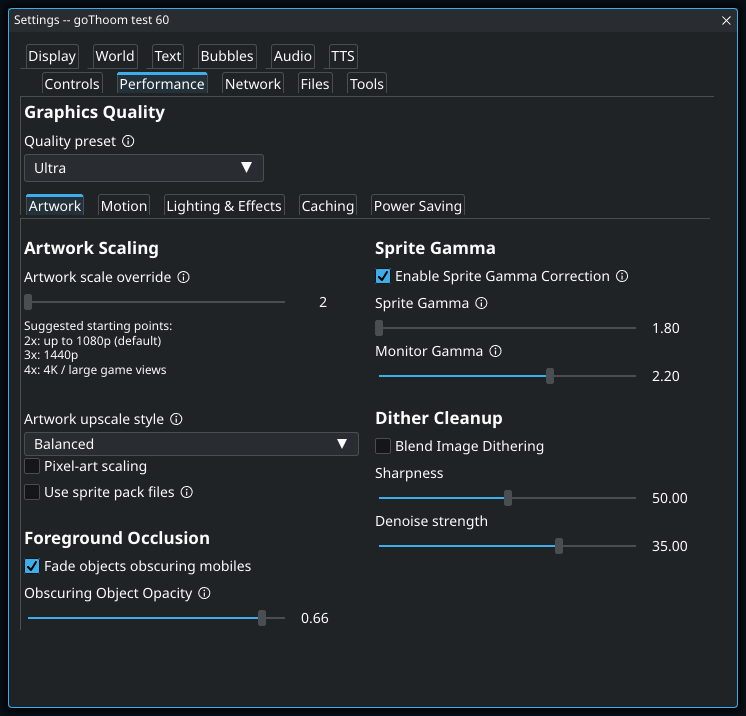
Settings → Performance → Quality preset offers Lowest, Low, Medium, High, and Ultra. Each tier adds to the previous one. Custom describes your individual choices when they do not match a preset. The setup wizard tests High and recommends Low or High from the measured frame rate; you can rerun its graphics detection later.
| Preset | What it enables |
|---|---|
| Lowest | Turns off the artwork upscale filter and the rendering/audio enhancements managed by presets. |
| Low | Balanced artwork filtering and character shadows. |
| Medium | Also enables sound precaching, window shadows, and lighting effects. |
| High | Also fades obscuring scenery, blends world animation, lets characters receive sun shadows, and enhances sound effects and bard music. |
| Ultra | Also enables high-quality audio resampling. |
Choose a preset before fine-tuning: it changes the listed graphics and audio options together. Artwork scale, sprite packs, replacement effects, VSync, and power-saving settings are separate choices. A lower preset will not automatically turn off a sprite pack or replacement effect you enabled.
- 1
A preset changes several graphics choices together. Use it as a starting point, then adjust individual effects while comparing the same scene. Selecting another preset can replace that tuning, so choose the preset before making detailed changes. UI and text sizing are controlled elsewhere.
Performance settings are shared by every character and session tab, so changing a graphics option affects whichever session is currently displayed.
Artwork resolution, edges, and color
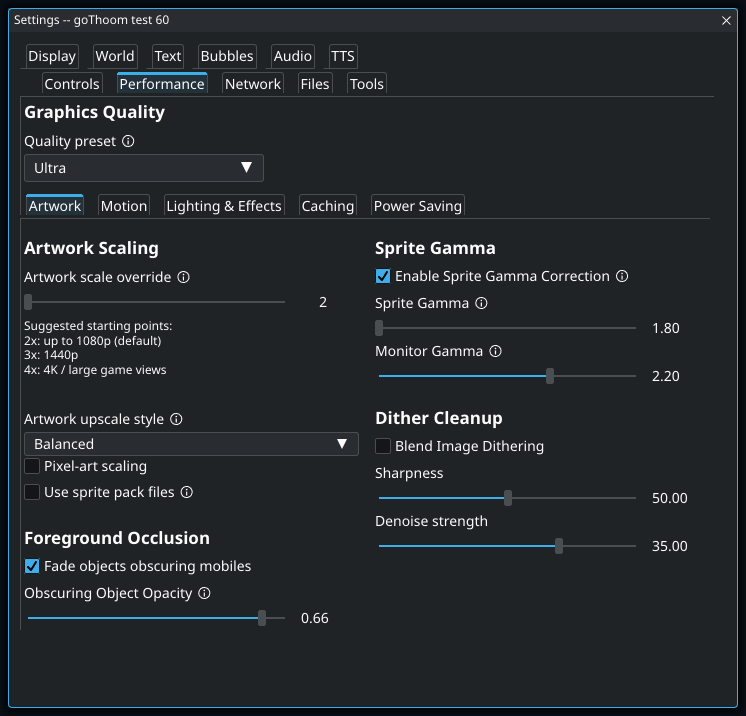
Artwork scale override controls the resolution of prepared artwork textures. Its default is 2×, and the control offers up to 4×. Resizing the game window does not change that setting. More detailed textures require more graphics memory, even if you display them in a small game pane.
Artwork upscale style changes the treatment of the original pixels. Crisp preserves hard boundaries; smoother styles blend more neighboring pixels. Compare small faces, equipment, and high-contrast scenery rather than judging only a large flat area.
- 1
This uses replacement PNGs you have installed in an hdimg folder; enabling it does not download a pack. The original picture size and placement stay the same. Turn it off to compare with the original artwork. Animated Replacement Effects have their own switch in Lighting & Effects.
Choose a visual direction
- For a sharper, more classic look: start with a crisper upscale style and compare Pixel-art scaling. If the picture still appears softened, turn off Blend Image Dithering and compare the result.
- For gentler edges: compare the smoother styles while standing still. Then walk through the scene; a treatment you like in a still image may look different in motion.
- If artwork looks washed out: compare Enable Sprite Gamma Correction before adjusting several brightness settings. Sprite Gamma describes the source artwork’s brightness encoding; Monitor Gamma describes the target response. They are not two independent brightness boosts.
Blend Image Dithering processes the artwork’s alternating pixel patterns. Its Denoise strength and Sharpness controls alter that treatment; judge both the intended smoothing and any fine detail you want to keep.
See characters behind scenery
Fade objects obscuring mobiles makes obstructing artwork less opaque. Its opacity value controls how much of the object remains visible while faded. This changes visibility, not collision: being able to see through an object does not mean your character can walk through it.
Install a sprite pack
Settings → Performance → Artwork → Use sprite pack files replaces supported static pictures with artwork you install. It starts off. The replacement keeps the original picture’s game size and position; a higher-resolution file adds detail without enlarging the object. This is separate from both upscaling the original pixels and the animated Replacement Effects.
- Open Settings → Files → Open User Data Folder and create an
hdimgfolder there. - Copy the pack’s PNG files or ZIP archives into
hdimg. PNG filenames must be numeric sprite IDs, such as1068.png. Subfolders and folders inside ZIPs are supported; ZIPs containing PNGs can stay zipped. - Enable Use sprite pack files. Enabling it scans the folders immediately. Pictures with no usable replacement keep their original artwork.
- After adding, editing, or removing pack files, use Settings → Tools → Debug Settings → Reload HD Sprites. The Console reports the number of discovered sprites and the folders scanned.
- For a before/after comparison, toggle Use sprite pack files in the same scene. Turn it off to return to original artwork; your pack files stay available for later.
The client also reads data/hdimg beside the game executable. Both locations can contribute sprites, but a game-folder replacement wins when the same ID exists in both. Within either location, a loose PNG at the top level wins over a PNG in a subfolder, which wins over a PNG inside a ZIP; alphabetical path order breaks ties. The user-data location is convenient for keeping packs across application upgrades, including on macOS.
Sprite packs are external files and are not downloaded by enabling the checkbox. File Paths → Assets & Audio does not relocate hdimg. To make your own pack or inspect individual originals and replacements, see Artwork authoring & previews.
When a replacement is missing or unexpected
- No pack files found: check that the folder is named
hdimg, that you used the active user-data or game directory, and that the PNG filenames are sprite IDs. Reload and check the reported folder list. - An ID appears in HD Sprite Preview but will not load: enable Use sprite pack files and let the normal game artwork finish loading. Only single-frame pictures are supported; animated pictures and mobile pose sheets are not replaced. Check Console for a PNG or ZIP read error.
- An older image still appears: check both pack locations for another file with the same ID, including ZIPs. Remove the unwanted copy and reload.
- The new art overlaps something: compare its transparent margins and visible footprint with the original. The whole PNG is fitted into the original sprite rectangle; extra padding or a shifted drawing changes where its contents appear.
Separate movement smoothing from pose blending
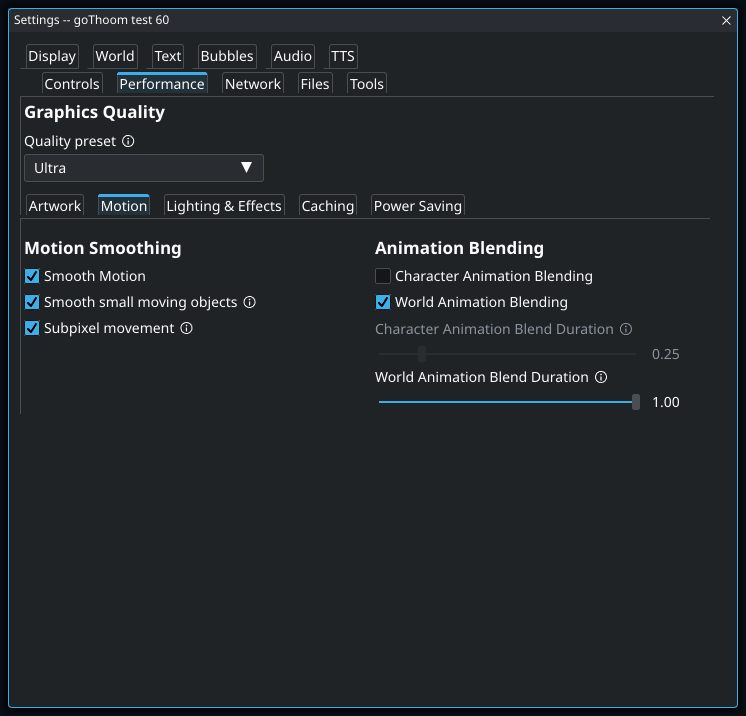
Smooth Motion interpolates movement between updates. Character Animation Blending blends changing character poses, and World Animation Blending handles changing world imagery. You can like smooth travel while preferring an immediate change of pose.
- 1
This blends between a character’s animation poses. It is separate from smoothing the character’s movement across the screen. If walking feels smooth but the character looks smeared during pose changes, shorten the character blend duration or disable this option while leaving Smooth Motion on.
- If travel looks jerky, compare Smooth Motion first.
- If a moving sprite seems to shimmer, compare Subpixel movement. It permits positions between screen pixels; turning it off places sprites on whole pixels.
- If changing poses leave a smeared appearance, reduce the relevant blend duration or disable that kind of animation blending.
- If small moving pictures lag visually behind the rest of the scene, compare Smooth small moving objects. It depends on Smooth Motion and only attempts to smooth eligible small sprites.
These controls change the displayed transition between received states. They do not make the server send updates more often or remove a delay in receiving them.
Lighting and shadows
Use Lighting & Effects to compare scene lighting and character shadows separately. Light strength, glow, and flame flicker affect appearance; turning off a whole effect is a clearer first comparison when diagnosing its rendering cost.
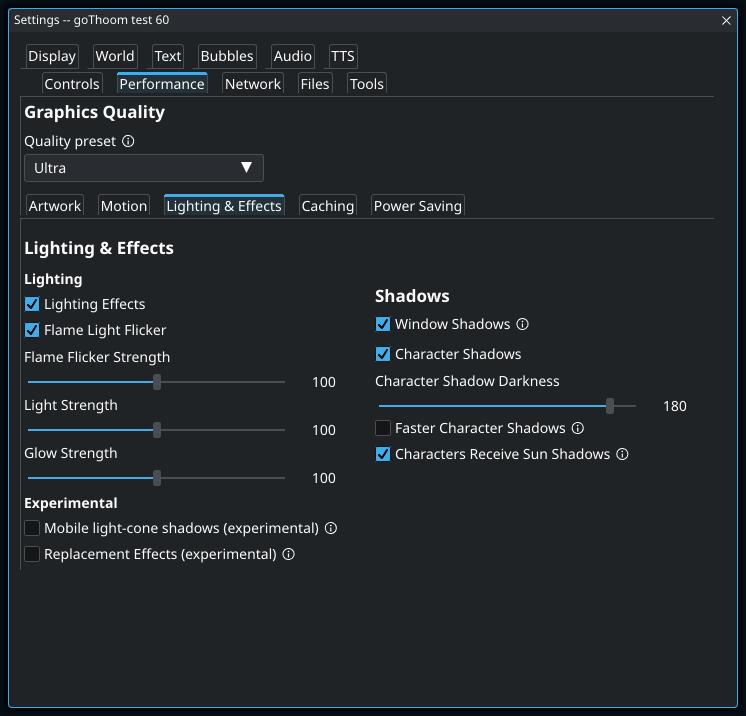
- Compare Lighting Effects in the same scene, including the same night conditions where possible.
- Compare Character Shadows separately. Window Shadows belongs to the UI windows, so changing it will not remove shadows under characters.
- Try Faster Character Shadows if you want to compare the alternative shadow path. Judge both the resulting image and drawing performance.
- Leave Experimental choices for separate comparisons after you have a stable setup. Replacement effects and mobile light-cone shadows are not required to use the client.
If an option here seems inactive, check the related choice: lighting controls its own strength, glow, and flicker; shadow options require Character Shadows; and animation blending requires Smooth Motion. To make a dark scene more readable without changing every lighting option, also inspect Settings → World → Max Night Level.
Try animated replacement effects
Enable Settings → Performance → Lighting & Effects → Replacement Effects (experimental) to use procedural animations for supported effects. It starts off and requires no sprite-pack files. The set includes healing and magic, fire and wall torches, stone form, critical-hit blood, flags, lava pools, town puddles, and shoreline foam.
Puddles show gently distorted character reflections and rings from footsteps; selected tiled floors also reflect characters. These appear only on supported surfaces and upright artwork, with lying and dead poses excluded. The images are visual cues: they do not change attacks, protection, collision, or the server’s timing.
Effects animate smoothly between game updates, and separate instances can start at different points in the animation. Persistent flags and torches stay attached to their scenery, while floor effects follow the ground’s drawing order. Compare the option in a familiar scene if the added motion or rendering cost is distracting.
Settings → Tools → Debug Settings → Open Effects Preview shows a gallery or one effect, with original/new comparison modes. Close Preview returns to the scene. The preview guide explains scale, animation rate, and shader reloads for development.
Loading pauses and memory use
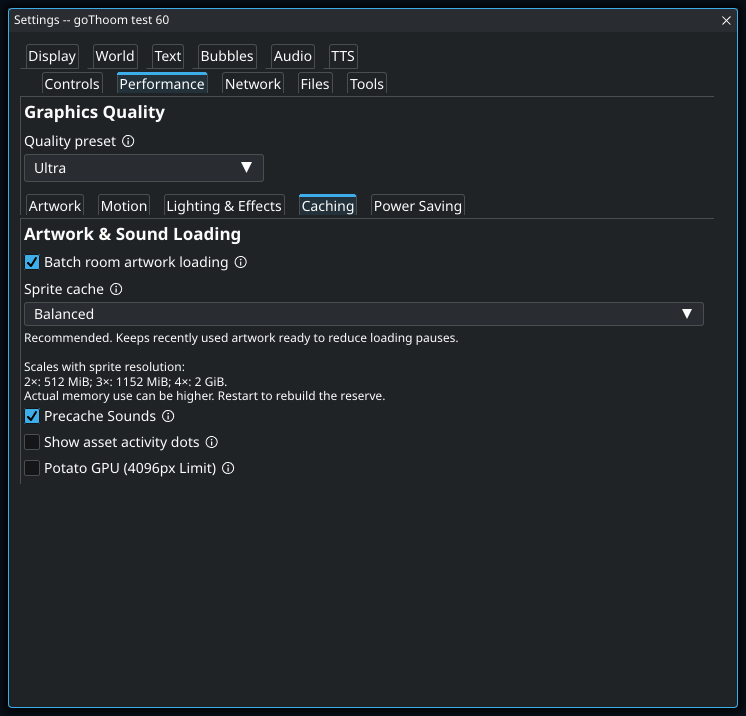
Batch room artwork loading prepares missing room artwork in one pause instead of spreading its first-use work across several frames. It changes when you experience that work. Compare room entry and the movement immediately afterward, not just an FPS reading while standing still.
Choose how much artwork to keep ready
The Sprite cache presets range from Minimal through Compact, Balanced, Generous, and Maximum. Balanced is the default. A smaller reserve leaves room for other applications but can require artwork to reload more often. A larger reserve can help when revisiting areas, if the machine has room for it.
The reserve scales with artwork resolution. For example, Balanced reserves 512 MiB at 2×, 1,152 MiB at 3×, and 2 GiB at 4×. Doubling the texture dimensions uses four times the area, so increasing artwork resolution and cache size together can be a large memory change.
This is not a ceiling on total graphics memory: the scene, interface, and other rendering resources also need memory. Read the reserve explanation below the selector and restart after changing the preset to rebuild it.
Recognize sound-loading pauses
Precache Sounds spends roughly 300 MB of additional RAM to avoid decoding a sound on its first playback. Consider it when a hitch coincides with a sound first being heard. It is a separate tradeoff from retaining artwork in graphics memory.
Use activity dots as clues
Show asset activity dots distinguishes artwork decoding/processing in green, audio decoding in amber, and GPU artwork upload in red. A dot tells you work is happening; it does not, by itself, establish the cause of a slowdown. Compare its timing with the pause you are investigating.
Potato GPU (4096px Limit) uses separate textures for graphics devices that cannot use the large shared artwork atlas. It keeps the same artwork resolution and upscale settings. Use it for texture-limit problems; for steady low FPS, compare the effects and artwork settings first.
Frame-rate limits and background behavior
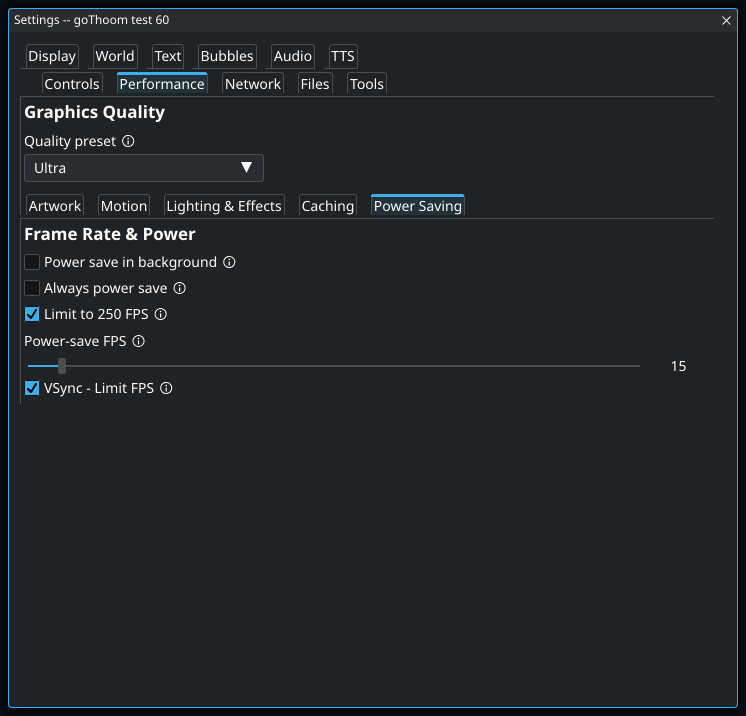
Power save in background reduces drawing while the client is unfocused. Always power save applies the power-saving limit even while focused. Both use the Power-save FPS value.
- 1
This applies the power-saving frame rate even while you are using the client. If the game seems capped below the rate you expected, check this before reducing graphics quality. Power save in background applies when the client loses focus; the two settings serve different situations.
VSync - Limit FPS relates drawing to the display’s refresh behavior. Disabling it can increase drawing work and power use without changing the game server’s timing. Do not interpret a deliberately capped rate as proof that your graphics settings are too demanding.
Limit to 250 FPS starts on. It caps drawing when VSync is off and power saving is inactive. Power saving uses its own Power-save FPS value, from 1 to 250; it accounts for time already spent drawing or waiting for the display.
- If the rate drops only when you switch applications, check the background setting.
- If it stays capped while you play, check Always power save and Power-save FPS.
- If the cap matches the display’s refresh rate, check VSync; if it is 250 FPS with VSync off, check Limit to 250 FPS.
- After testing, restore the power settings you want for ordinary use.
Restore a usable picture
Open Settings → Performance → Quality preset and choose a preset to restore a coordinated set of graphics settings. Use this when the picture becomes difficult to read after experimenting with individual options. Once it looks comfortable again, make any further adjustments one at a time.
If the issue involves installed artwork or procedural animations, compare Use sprite pack files and Replacement Effects separately. Quality presets leave those choices as you set them.
For a report, record the client version, operating system, graphics device, window size, UI scale, quality preset, and the specific settings that reproduce the problem. Include whether it occurs on first room entry, throughout a scene, only during movement, or only when unfocused. The diagnostics walkthrough explains screenshots and logs.